
Operations
Discounts
#Overview
This document provides step-by-step instructions on how to view discounted loans in the system and export them in various formats.
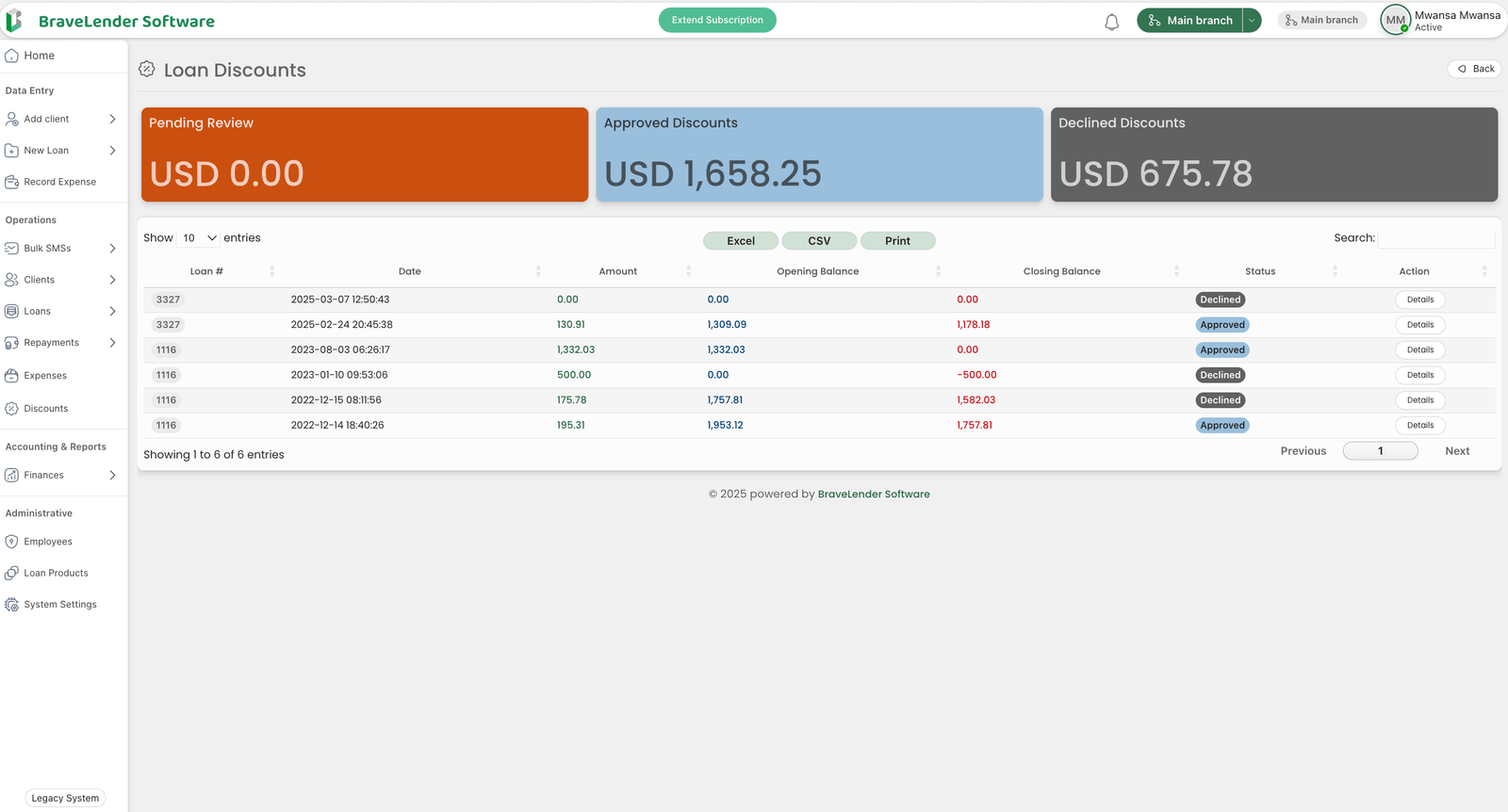
#Steps to View Discounted Loans
#Step 1: Access the Loan Management System
- Log in to the system using your credentials.
- Navigate to the "Discount" section under "Operations".
#Step 2: View Discounted Loan List
- A list of all discounted loans will be displayed, including:
- Loan Number
- Borrower Name
- Original Loan Amount
- Discounted Amount
- Discount Percentage
- Loan Status (Active, Closed, Overdue, etc.)
#Step 3: Filter and Search Discounted Loans
- Use the search bar to find specific discounted loans by:
- Borrower Name
- Loan Number
- Discount Percentage
- Loan Status
- Date Range
- Apply filters to refine the displayed loan records.
#Step 4: View Discounted Loan Details
- Click on a discounted loan entry to open detailed information.
- View all associated details, including the original loan amount, discount applied, and repayment status.
#Step 5: Export or Print Discounted Loan Records
- The data can be exported with the following formats:
- Excel – Export to an Excel spreadsheet.
- CSV – Download as a comma-separated values file.
- Print – Send the displayed loan list to a printer.
- Select the desired format and save or print the file.
#Notes
- Ensure you have the correct access permissions to view and export discounted loan records.
- Use filters effectively to find relevant loan details quickly.
- If a loan entry appears incorrect, verify its details or contact the administrator for corrections.
#Conclusion
By following these steps, you can efficiently view and manage discounted loans while exporting necessary records for financial analysis and reporting.