
Data Entry
Recording Expenses
#Overview
This document provides step-by-step instructions on how to record an expense, including the required fields and submission process.
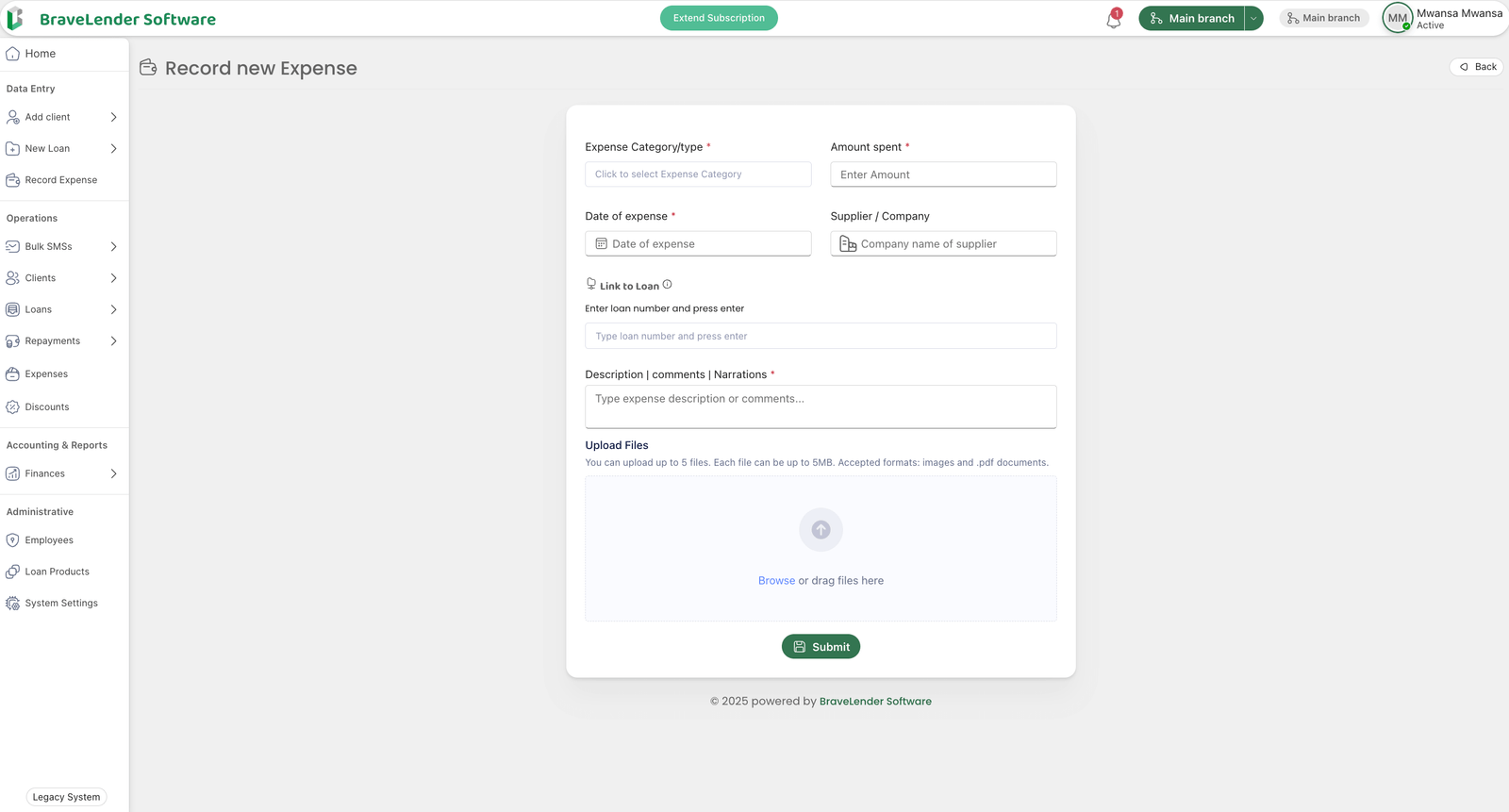
#Required Fields
To successfully record an expense, the following details must be provided:
- Expense Category/Type* - Select the type of expense (e.g., office supplies, rent, utilities, etc.).
- Amount Spent* - Enter the total amount spent for the expense.
- Date of Expense* - Provide the date when the expense was incurred (YYYY-MM-DD format).
- Supplier/Company - Enter the name of the supplier or company from which the goods/services were purchased.
- Enter Loan Number and Press Enter - If applicable, enter the loan number associated with the expense and press Enter.
- Description/Comments/Narrations* - Provide additional details or context about the expense.
- Upload Files and Click Submit - Attach any supporting documents (e.g., invoices, receipts) and submit the entry.
#Steps to Record an Expense
#Step 1: Access the Expense Recording System
- Log in to the system using your credentials.
- Navigate to the "Expenses" section.
- Click on the "Record New Expense" button.
#Step 2: Enter Expense Details
- Fill in all required fields:
- Select an Expense Category/Type.
- Enter the Amount Spent.
- Choose the Date of Expense.
- Enter the Supplier/Company (if applicable).
- Provide the Loan Number (if linked to a loan).
- Add a Description, Comments, or Narrations to provide context.
#Step 3: Upload Supporting Files
- Click on the Upload Files button.
- Attach relevant documents (e.g., receipts, invoices) in supported formats (PDF, JPG, PNG, etc.).
#Step 4: Submit the Expense Record
- Review the entered details for accuracy.
- Click on the Submit button to finalize the expense record.
- A confirmation message will be displayed upon successful submission.
#Notes
- Fields marked with (*) are mandatory.
- Ensure all uploaded files are clear and relevant to the expense.
- If an error occurs, review the validation messages and correct the necessary fields before resubmitting.
#Conclusion
By following these steps, you can efficiently record expenses, ensuring accurate financial tracking and compliance with accounting standards.